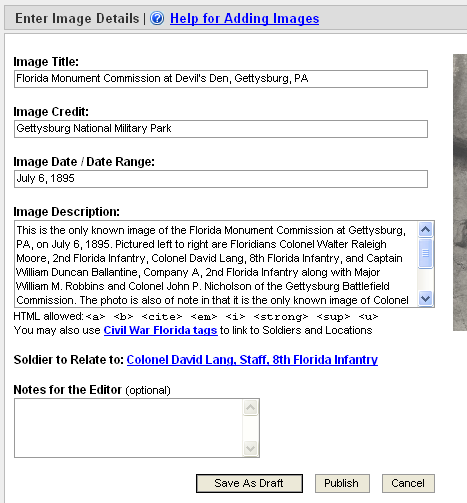
Image Title : This field will appear as the caption of the Image you are adding. Try to include the name of the Soldier related to this Image in the Image Title. This field is required.
Image Credit : This field is used to credit the source of the Image you are uploading (e.g., Florida State Archives, Library of Congress). If you took the picture yourself, enter your name here. If you're not sure who took the picture or its source, you may enter "unknown" and explain the Image in the Notes for the Editor field below. This field is required. IMPORTANT: Do not submit copyrighted images without permission!
Image Date / Date Range : This field is used to store the date or date range in which the Image was created. For example, if you know the exact date the Image was created, you might type "July 6, 1895." If you know that the Image was created during the later part of the Nineteenth Century, you might type "Late 1800s." You may also enter "unknown" if you're not sure. This field is optional.
Image Description : This field is used to add a text description of the image and what it shows. The more details you can provide of the Image and its history, the better. This field is optional.
You may also use a limited set of HTML tags to enhance the description, as well as Civil War Florida tags to link to other Civil War Florida content such as other Locations, Soldiers, etc.
Soldier to Relate To: This link goes to the Soldier under which this Image will be listed if it is approved by the editors.
Notes for the Editor: It is often helpful to include a short summary of your edits, especially if you are updating an existing Image. Messages such as "Fixed spelling errors" or "Added more detail to description" help editors to more quickly review and approve your submissions. Editors may also use this field to send messages back to you when they approve or reject your Image. This field is optional.
Save As Draft: This button allows you to save your edits without having to submit them for approval. It's very useful if you want to work on an Image over more than one session. Once it's saved as a draft, you can access your draft Image (and drafts of all other items you may be working on but haven't yet submitted) on your My Drafts page. Only you can see your draft Image.
Submit for Changes Approval: This button notifies the editors via email that you are ready for them to review your changes to this Image for inclusion on the public site. When they review an Image (or any other item), editors may make changes ranging from spelling and grammer to content. Only you and the editors can see Images which you've submitted but which haven't yet been approved. If an editor approves your Image, you'll get an email notifying you of the approval, and your Image will be available on the public site for everyone to see and use. If an editor rejects your Image, you'll get an email notifying you of the rejection.
Cancel: This buttons cancels the Add Image process.